

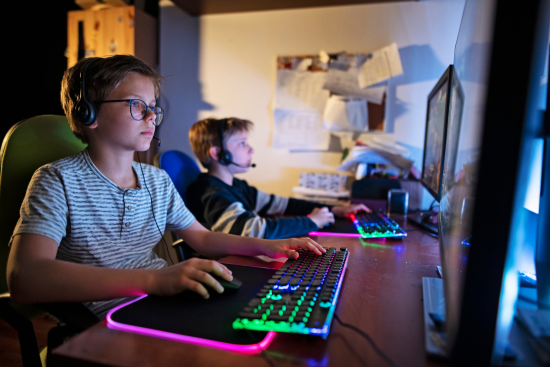
There’s nothing quite as infuriating as being one headshot away from a clutch round and having your screen go black, followed by the Windows logo staring back at you. If your PC restarts when gaming and everything looks fine the moment you’re doing anything else, you’re dealing with one of the most common — and most misunderstood — PC problems out there. It’s rarely random, even though it feels that way, and it’s almost never “just Windows being Windows.”
I’ve spent a lot of time chasing this exact issue, both on my own rigs and helping friends figure out why their otherwise healthy-looking systems keep dropping out mid-match. The frustrating part is that a PC that restarts when gaming can have a dozen different root causes, and most generic troubleshooting guides just tell you to “check your temperatures” and call it a day. That’s not enough. Below is a genuinely thorough breakdown of the reasons this happens, how to diagnose each one, and what actually fixes it — not just what might.
Quick overview: why does a PC restart when gaming?
In almost every case, an unexpected restart during a game (as opposed to a freeze or a crash to desktop) points to one of three broad categories:
- Power-related failures — the PSU can’t deliver what the GPU or CPU is suddenly demanding
- Thermal shutdowns — a component hits its safety limit and the system reboots to protect itself
- Software or driver conflicts — something in the stack (GPU driver, Windows, overlay software) is triggering a hard fault
Because a PC restarts when gaming specifically — and not while browsing or doing office work — the culprit is almost always tied to sustained high load, since gaming is one of the few everyday tasks that pushes your CPU and GPU close to their limits at the same time. That’s the big clue that narrows things down fast.
Below is a quick-reference table before we go deep on each cause.
| # | Cause | Typical Trigger | Quick Fix |
|---|---|---|---|
| 1 | Overheating (CPU/GPU) | Demanding games, poor airflow, dust | Clean the case, repaste, improve airflow |
| 2 | Insufficient or failing PSU | High-wattage GPUs, power spikes | Test with a different PSU, check wattage headroom |
| 3 | Outdated or corrupted GPU drivers | New game patches, Windows updates | Clean driver reinstall (DDU) |
| 4 | Unstable overclock | CPU/GPU/RAM pushed past stable limits | Reset to stock clocks, retest |
| 5 | Faulty or failing RAM | Random restarts, not always gaming-linked | Run MemTest86 |
| 6 | Windows Automatic Restart on error | Blue screen hidden by auto-reboot | Disable auto-restart, read the actual error |
| 7 | Power supply cable/connector issues | Loose or damaged PCIe cables | Reseat and inspect all power cables |
| 8 | Background software conflicts | Overlays, RGB software, antivirus | Disable overlays one by one |
| 9 | Dust and poor case airflow | Restarts worsen over months of use | Deep clean, add case fans |
| 10 | Failing motherboard or capacitors | Restarts across multiple components | Inspect for bulging caps, test another board |
| 11 | Corrupted Windows system files | Random restarts even outside games | Run SFC/DISM scans |
| 12 | Electrical/wall outlet issues | Restarts coincide with other devices | Test a different outlet, use a surge protector |
Now let’s go through each one in detail, because “clean your PC” isn’t a satisfying answer when you actually want to understand what’s happening.
1. Overheating (CPU or GPU thermal shutdown)
The problem: This is, by a wide margin, the single most common reason a PC restarts when gaming. Modern CPUs and GPUs have thermal protection built in — when the chip’s sensor reports a temperature near its maximum safe threshold (often somewhere around 95–100°C for CPUs and 90–95°C for GPUs, depending on the model), the system doesn’t wait around to see what happens. It shuts down or reboots to prevent permanent damage to the silicon.
What makes this tricky is that a lot of people assume overheating always causes a freeze or a fan-noise spike first. Sometimes it does. But with modern protection circuits, the reboot can happen almost instantly, which is why people are often confused — “it wasn’t even that loud, and then it just restarted.”
Why it happens:
- Dust buildup in the heatsink fins, blocking airflow
- Dried-out or degraded thermal paste (especially on CPUs older than 2–3 years)
- Poor case airflow — not enough intake or exhaust fans
- A case placed in an enclosed cabinet or against a wall with no ventilation
- A GPU cooler that wasn’t properly seated after cleaning or upgrading
The solution:
- Download a monitoring tool like HWInfo or HWMonitor and watch your CPU and GPU temps while you play. If either climbs past 90°C consistently, you’ve found your answer.
- Open the case and physically inspect for dust — it collects fast, especially around GPU fans and CPU heatsinks.
- Repaste the CPU if it’s been more than 2–3 years since the last application, or if you’re not sure it was ever done properly.
- Add or reposition case fans so you have clear intake at the front/bottom and exhaust at the back/top — airflow direction matters more than fan count.
- Make sure the case has breathing room; six inches of clearance on the side with intake fans makes a real difference.
2. Insufficient or failing power supply (PSU)
The problem: Modern GPUs, particularly high-end ones, don’t draw power evenly — they spike. A card rated for 300W average draw can momentarily spike well above that during demanding scenes, and if your PSU can’t handle the transient load, it can trip its protection circuits and shut off, which the motherboard often interprets as a restart trigger. This is one of the sneakiest reasons a PC restarts when gaming, because the PSU itself might not be “broken” in a way that shows up in basic tests — it just can’t keep up under real gaming loads.
Why it happens:
- The PSU wattage is too close to what the system needs at peak load, leaving no headroom
- The PSU is old and has degraded capacitors, reducing its effective output over time
- A budget or unbranded PSU without stable rails and proper transient response
- A GPU was upgraded without upgrading the PSU to match
The solution:
- Calculate your actual power draw using a PSU calculator (based on your specific CPU and GPU), then add at least 20–30% headroom.
- If your PSU is more than 5–6 years old, consider replacing it even if it “still works” — capacitors degrade with age and heat cycles.
- Borrow or buy a known-good, reputable PSU (look for 80 Plus Gold or better from established brands) and swap it in as a test. If the restarts stop, you’ve confirmed the cause.
- Check that your GPU’s power connectors are fully seated — a half-inserted 8-pin or 12VHPWR connector can cause exactly this kind of instability.
3. Outdated or corrupted GPU drivers
The problem: Your graphics driver is the software layer translating game instructions into something your GPU can execute. When it’s outdated, corrupted, or conflicting with a recent Windows update, it can throw a fault severe enough to crash the entire system rather than just the game. This is especially common right after a new NVIDIA or AMD driver release, or right after a big Windows feature update lands.
Why it happens:
- A driver update installed incorrectly or partially
- Leftover files from a previous driver version conflicting with the new one
- A brand-new driver with an unpatched bug (this happens more often than GPU makers would like to admit)
- Windows Update silently reinstalling a generic driver over your dedicated one
The solution:
- Use Display Driver Uninstaller (DDU) in Safe Mode to fully remove your current GPU driver, including leftover registry entries.
- Download the latest stable driver directly from NVIDIA, AMD, or Intel’s website — not a random third-party source.
- If the newest driver is unstable, deliberately roll back to a previous version known to be stable for your GPU generation; enthusiast forums and Reddit threads are usually fast to flag bad releases.
- Disable automatic driver installation through Windows Update (Device Installation Settings) so it doesn’t overwrite your manually installed driver.
4. Unstable overclock (CPU, GPU, or RAM)
The problem: Overclocking pushes your hardware past its factory-guaranteed limits for more performance, but “guaranteed” is the key word — every chip has a stability ceiling, and if you’ve pushed past it (even slightly), the system can restart the moment sustained load exposes the instability. This is one of the most predictable reasons a PC restarts when gaming, because gaming is exactly the kind of sustained, mixed workload that reveals marginal overclocks other tests might miss.
Why it happens:
- A CPU or GPU overclock that passed a quick stress test but isn’t stable long-term
- XMP/EXPO RAM profiles that are technically out of spec for your motherboard
- Voltage set too low for the clock speed, causing instability under load
- Ambient temperature changes (a hot summer day) exposing a marginal overclock
The solution:
- Reset all clocks to stock/default in BIOS and see if the restarts stop — this single step resolves the issue more often than people expect.
- If you want to keep overclocking, dial back your settings by 5–10% and retest with a proper stress tool (Prime95, OCCT, or 3DMark stress test) for at least 30 minutes.
- For RAM, try enabling XMP/EXPO at a lower frequency first, and only push higher once you’ve confirmed stability with MemTest86.
- Keep a log of your settings — if the PC restarts when gaming after any BIOS change, you’ll know exactly what to revert.
5. Faulty or failing RAM
The problem: Bad RAM doesn’t always announce itself with a blue screen. Sometimes it just causes silent restarts, especially under the kind of memory-intensive, rapidly shifting workload that games create. A single unstable memory module (or a bad slot on the motherboard) can be enough to trigger a hard reboot.
Why it happens:
- A manufacturing defect in one of the RAM sticks
- Physical damage from static electricity or improper installation
- RAM running at a speed or timing it can’t sustain reliably
- Mismatched RAM kits (mixing sticks from different kits or capacities)
The solution:
- Run MemTest86 (bootable from USB) overnight — even one error means the RAM or the slot is suspect.
- Test each stick individually in the same slot to isolate whether it’s a specific module or a specific motherboard slot at fault.
- Reseat the RAM firmly, making sure both clips lock — an improperly seated stick is a surprisingly common cause of intermittent restarts.
- If you’re using more than two sticks, try running with just two in the recommended slots (check your motherboard manual) to rule out a compatibility quirk.
6. Windows “Automatic Restart on System Failure” hiding the real error
The problem: Here’s a twist a lot of people miss: what looks like a random restart might actually be a Blue Screen of Death (BSOD) that you never see, because Windows is configured by default to automatically restart after a critical system error instead of showing you the crash screen. So your PC restarts when gaming and you assume it’s a mystery, when in reality Windows already told you exactly what went wrong — you just never got to read it.
Why it happens:
- Windows’ default crash-handling behavior prioritizes uptime over visibility
- The crash dump is being written to disk (Event Viewer or WhoCrashed can read it) but never displayed on screen
- Users often don’t know this setting exists, let alone how to change it
The solution:
- Go to System Properties → Advanced → Startup and Recovery → Settings, and uncheck “Automatically restart” under System Failure.
- Next time it happens, you’ll actually see the BSOD and its stop code (e.g.,
IRQL_NOT_LESS_OR_EQUAL,WHEA_UNCORRECTABLE_ERROR), which tells you precisely which subsystem failed. - Alternatively, install a free tool like WhoCrashed or BlueScreenView to read the minidump files Windows already saved — this works retroactively, even for restarts that already happened.
- Search the specific stop code online; each one points to a fairly narrow set of causes (driver, RAM, disk, or hardware).
7. Loose or damaged power cables and connectors
The problem: It sounds almost too simple, but a power connector that isn’t fully seated — especially the CPU’s 4+4 pin or the GPU’s 6/8-pin or 12VHPWR connector — can cause exactly the kind of load-triggered restart we’re talking about. It works fine at idle because the power draw is low, then fails the moment the game pushes real demand through that connection.
Why it happens:
- Cables not pushed in fully during a build or upgrade
- Cable connectors with worn-out pins after repeated plugging/unplugging
- Using cables from a different PSU brand/model than the one currently installed (non-modular cables are not universally interchangeable)
- Kinked or pinched cables putting mechanical stress on the connector
The solution:
- Power down, unplug the PSU, and firmly reseat every power cable — CPU, GPU, and motherboard 24-pin — until you hear/feel them click.
- Visually inspect the pins for any bent or discolored contacts.
- If you have modular PSU cables, make sure every cable is genuinely rated for that PSU model; mismatched modular cables are a known cause of intermittent failures.
- If a GPU uses multiple power connectors, make sure all of them are connected — running a card on fewer connectors than required is a common, avoidable mistake.
8. Background software conflicts (overlays, RGB tools, antivirus)
The problem: It’s not always hardware. Overlay software (Discord, GeForce Experience, Xbox Game Bar), RGB lighting control suites, and some antivirus programs inject themselves into games at a low level, and a conflict between two of them can crash the entire system rather than just the app. This is a genuinely underrated reason a PC restarts when gaming, because it’s easy to blame hardware when the real issue is a piece of software you installed months ago and forgot about.
Why it happens:
- Multiple overlays running simultaneously (e.g., Discord + Steam + GeForce Experience all trying to hook into the same game)
- RGB software conflicting with motherboard firmware after an update
- Overly aggressive antivirus real-time scanning interfering with game or driver processes
- Old, unmaintained mod managers or injector tools
The solution:
- Disable all overlays one at a time (Discord in-game overlay, Steam overlay, Xbox Game Bar, GeForce Experience/AMD overlay) and test after each change.
- Temporarily uninstall RGB control software to see if restarts stop — you can often reinstall a lighter alternative afterward.
- Add your game’s executable and installation folder as an exclusion in your antivirus settings.
- Do a clean boot (msconfig → disable all non-Microsoft startup services) to see whether a background process is the trigger.
9. Dust buildup and poor long-term case airflow
The problem: This overlaps with overheating but deserves its own mention because it’s a gradual, easy-to-miss cause. A PC that ran fine for a year can start to restart when gaming simply because months of dust have slowly choked the heatsinks and fans, raising temperatures a little at a time until they finally cross the shutdown threshold.
Why it happens:
- Pets, carpeted rooms, and general household dust accumulate inside the case over months
- Fan filters (if present) get clogged and are rarely cleaned
- Fans slow down or fail as bearings wear out, reducing airflow even if they look like they’re spinning
The solution:
- Do a full case cleaning every 3–6 months using compressed air, especially on the GPU fans, CPU heatsink, and PSU intake.
- Hold fan blades still while blowing compressed air through them to avoid over-spinning the bearings.
- Replace any fan that sounds different than it used to (grinding, ticking) — it’s likely losing efficiency even before it fully fails.
- Consider adding a simple mesh dust filter to the front intake if your case doesn’t already have one.
10. Failing motherboard or degraded capacitors
The problem: Less common, but real: motherboards have capacitors that degrade over time, particularly in systems that run hot or have been through several PSU or GPU upgrades. When a motherboard’s power delivery starts to fail, it often shows up first under load — exactly when you’re gaming — rather than at idle.
Why it happens:
- Age (typically 6+ years of regular use)
- Prolonged operation at high temperatures, which accelerates capacitor wear
- A previous power surge or unstable PSU that stressed the board’s components
- Manufacturing defects that only become apparent after months or years of use
The solution:
- Open the case and visually inspect capacitors near the CPU socket for bulging tops or leakage — this is a definitive sign of failure.
- Test your CPU and GPU in a different, known-good motherboard if you have access to one (or a friend willing to help) to isolate the fault.
- Check your motherboard manufacturer’s diagnostic LEDs or debug codes, if your board has them — they often point directly at power delivery issues.
- If the board is confirmed faulty and still under warranty, RMA it rather than attempting a repair yourself.
Bonus causes worth ruling out
Beyond the big 10, a few less common but still real culprits show up often enough to mention:
- Corrupted Windows system files — run
sfc /scannowandDISM /Online /Cleanup-Image /RestoreHealthfrom an elevated Command Prompt to repair damaged system files that can cause instability under load. - A failing or overheating storage drive — an SSD or HDD that’s struggling can, in rare cases, contribute to system instability if the game is streaming assets aggressively; check drive health with CrystalDiskInfo.
- Electrical issues on the wall circuit — if the restarts coincide with other appliances kicking on (an AC unit, a fridge compressor), you might be dealing with voltage sags; a good surge protector or UPS can rule this out.
- A recent Windows update — occasionally a cumulative update introduces a regression; checking your update history against when the restarts started is a quick, often-overlooked diagnostic step.
Other common gaming bugs and crashes (and how they differ from restarts)
It’s worth distinguishing a full system restart from other gaming-related failures, because the fix is completely different depending on which one you’re actually dealing with:
- Freezing (no restart, no crash): Usually points to a driver hang or a GPU that’s not fully failing but struggling — try updating drivers and checking temps first.
- Crash to desktop (game closes, PC stays on): Almost always a software-side issue — a corrupted game file, a missing dependency (like DirectX or Visual C++ redistributables), or a game-specific bug rather than a hardware fault.
- Black screen with audio still running: Frequently a GPU driver timeout (TDR event) rather than the full system restart we’ve covered here; updating or rolling back drivers is the first step.
- Blue Screen of Death that doesn’t auto-restart: This is Windows giving you the clearest possible clue — always note the stop code before doing anything else.
- Random restarts unrelated to gaming: If restarts also happen during idle or light browsing, the cause is less likely to be load-specific (like overclocking or thermals) and more likely to be RAM, PSU, or a corrupted Windows install.
Understanding which category you’re actually in saves a lot of wasted troubleshooting time — a fix for a full restart won’t necessarily do anything for a black screen freeze, and vice versa.
A few interesting facts most people don’t know
- Modern CPUs perform thousands of micro throttling adjustments per second under load — a shutdown only happens when even that isn’t enough to control temperature.
- GPU power spikes can be genuinely brief — sometimes just a few milliseconds — which is exactly why a PSU can look fine on a multimeter but still fail during a real game.
- Thermal paste isn’t a permanent fix — most standard pastes start degrading measurably after about 2 years, especially in systems that see frequent heat cycling.
- The very first documented “restart on overheat” protections in consumer CPUs appeared in the early 2000s, after a well-known incident where CPUs without thermal protection could physically burn out if the heatsink fell off during operation.
- A significant percentage of “hardware failure” support tickets for gaming PCs turn out to be software or driver conflicts once properly diagnosed — hardware gets blamed far more often than it deserves.
Step-by-step troubleshooting checklist
If you don’t know where to start, work through this order — it’s roughly sequenced from “most likely and easiest to check” to “least likely and most involved”:
- Check CPU/GPU temperatures during a gaming session with HWInfo
- Disable Windows automatic restart and capture the actual BSOD/stop code
- Clean dust from the case, fans, and heatsinks
- Do a clean GPU driver reinstall using DDU
- Reset any overclocks to stock and retest
- Reseat all power cables (CPU, GPU, 24-pin)
- Run MemTest86 overnight
- Disable overlays and non-essential background software
- Test with a different, known-good PSU if possible
- Run SFC/DISM to check for corrupted system files
- Inspect the motherboard for visibly damaged capacitors
- If nothing else works, test components in a different system to isolate the fault
Working through this list methodically, rather than guessing, is genuinely the fastest way to solve a PC that restarts when gaming — most people find their answer somewhere in the first five steps.
When to consider professional help
If you’ve worked through the checklist above and your PC still restarts when gaming, it may be time to bring it to a repair shop or contact the manufacturer, especially if:
- You suspect the motherboard or PSU but don’t have spare parts to test with
- The system is still under warranty (opening the case yourself can sometimes void it — check first)
- You’re not comfortable reseating internal components or handling static-sensitive parts
- The restarts have gotten more frequent despite your fixes, which can indicate a component actively degrading
A good technician can run load tests with proper diagnostic equipment that’s hard to replicate at home, which can save you from a long cycle of expensive part-swapping guesswork.
Final thoughts
A PC that restarts when gaming is almost always solvable once you stop treating it as a mystery and start treating it as a process of elimination. Start with temperatures and drivers, since they account for the majority of cases, and work your way down the list systematically. Keep notes on what you’ve changed and when — it makes it much easier to spot patterns, especially if the restarts come back weeks later after a Windows update or a new game release.
Most people find that the fix is smaller and cheaper than they feared — a driver reinstall, a thorough dust cleaning, or a properly seated cable. But if you’ve genuinely ruled out the common causes and the problem persists, don’t hesitate to test parts individually or get a second opinion. A restart during gaming is your PC’s way of protecting itself; treat it as useful information rather than just an annoyance, and you’ll get to the real cause faster than you’d expect.
FAQ
Why does my PC restart when gaming but not when doing other tasks?
Because gaming pushes your CPU and GPU to sustained high load in a way most other everyday tasks don’t. Problems like marginal overclocks, insufficient PSU headroom, and overheating tend to stay hidden until that load appears, which is why the restarts seem to happen “only” during games.
Is it dangerous to keep playing if my PC restarts when gaming?
It’s not immediately dangerous in most cases, since the restart is usually a protective response (especially with thermal shutdowns), but repeatedly running hardware near its safety limits can shorten its lifespan over time. It’s worth diagnosing the cause rather than just accepting it as normal.
Can a virus cause my PC to restart when gaming?
It’s possible but relatively uncommon compared to the hardware and driver causes covered above. Malware that consumes excessive CPU or GPU resources can indirectly trigger thermal or power-related restarts, so running a full malware scan is a reasonable step if other fixes don’t resolve the issue.
Will reinstalling Windows fix a PC that restarts when gaming?
Sometimes, if the cause is corrupted system files or a deeply tangled software conflict, but it won’t fix hardware issues like overheating, a failing PSU, or bad RAM. It’s better used as a later step after ruling out hardware causes first, since it’s time-consuming and won’t address a physical fault.
How do I know if it’s my GPU or my PSU causing the restarts?
Monitor GPU temperature and usage with HWInfo during a crash — if temperatures are well within safe limits when the restart happens, the PSU (or its cabling) becomes a more likely suspect than the GPU itself. Testing with a different, known-good PSU is the most reliable way to confirm this.
Why did my PC only start restarting when gaming after a Windows update?
Windows updates occasionally change power management settings, reinstall generic drivers over your dedicated GPU driver, or introduce compatibility regressions. Checking your driver version and rolling back or reinstalling it after a major update is a quick way to test this theory.